
Adding your voice
Why add your voice
Your AI already responds in your style and tone in writing. Adding your voice takes this further, as it gives your AI the ability to respond to your audience in audio. This can enhance your audience's experience, provide a more personal connection, and make conversations feel more like working with you directly.
This voice feature is only available on an Annual Plus plan. You can switch to this in your account settings or by contacting us.
How to add your voice
Once we have enabled voice for your Coachvox account, there are a few steps to get set up:
- Create an ElevenLabs account
- Create your voice in ElevenLabs
- Connect your voice to Coachvox
- Test your AI's voice
Create an ElevenLabs account
To add your voice to Coachvox, you'll need an account for ElevenLabs - the voice cloning technology powering this voice feature.
You create your own ElevenLabs account and give your Coachvox account access via an API key. ElevenLabs will then bill you directly for voice generation usage, so you stay in full control of your account and costs. Each plan includes an amount of usage credits.
Here's how to get set up:
- Sign up for ElevenLabs - Go to elevenlabs.io to create an account.
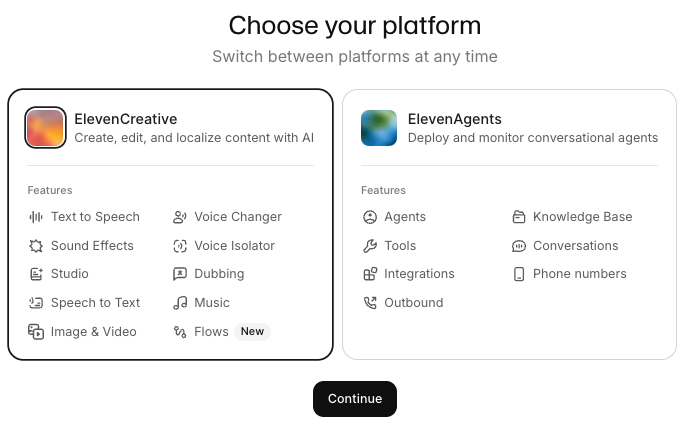
- Select a platform - Choose ElevenCreative:
- Complete a few details - some are skippable.
- Select a plan - The plan you select depends on which type of voice cloning you want to use. These are your options:
- Starter plan (around $60/year, billed annually) - includes Instant Voice Cloning, which uses about 1-3 minutes of clear audio and is the simplest option. (We recommend trying this first!)
- Creator plan or above (around $220/year, billed annually) - unlocks Professional Voice Cloning, which uses a longer sample - from 30 minutes up to a few hours - and creates a more accurate version of your voice.
You can choose a monthly or yearly plan. Yearly usually gives you a saving.

Create your voice in ElevenLabs
Once you have chosen your plan, it's time to create your voice.
- On the ElevenLabs menu, find Voices and click the + icon
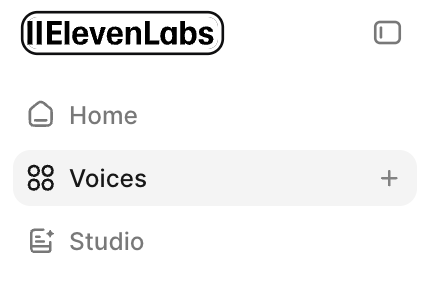
Alternatively, once you're on the Voices page, you will see a + Create Voice button.

- Select your voice cloning method, either:
- Instant Voice Clone
- Professional Voice Clone
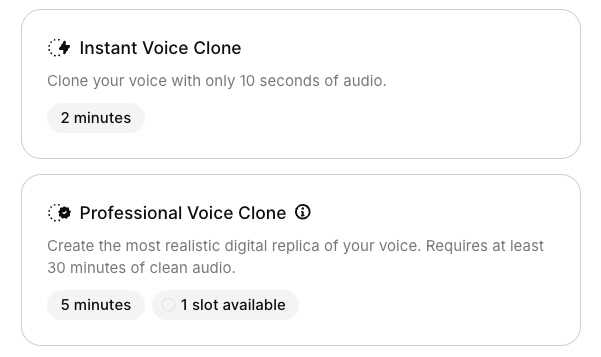
The next steps depend on which type of cloning you're using.
Instant Voice Cloning method steps
The method is available on all paid plans.
You'll need about 1 to 3 minutes of clear audio of you speaking.
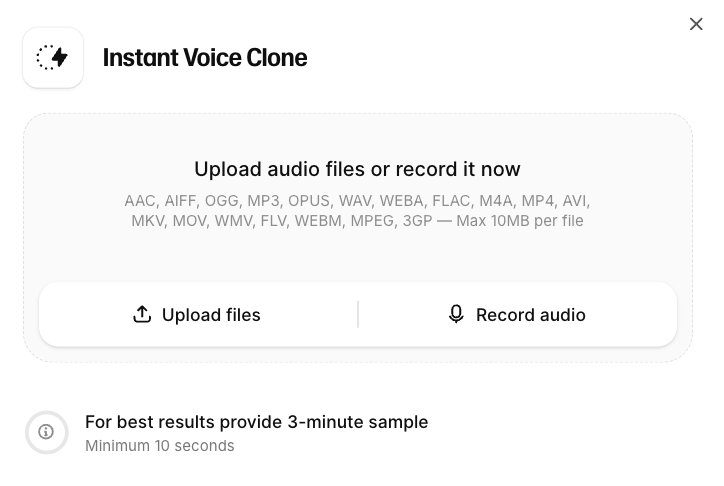
ElevenLabs lets you record directly in your browser as part of the setup, so you don't need a separate recording tool, or you can upload audio files.
We recommend creating and reading from a script specifically for this method - see writing a voice script below for tips and an AI prompt to help you prepare one.
- Record your voice directly or upload files.
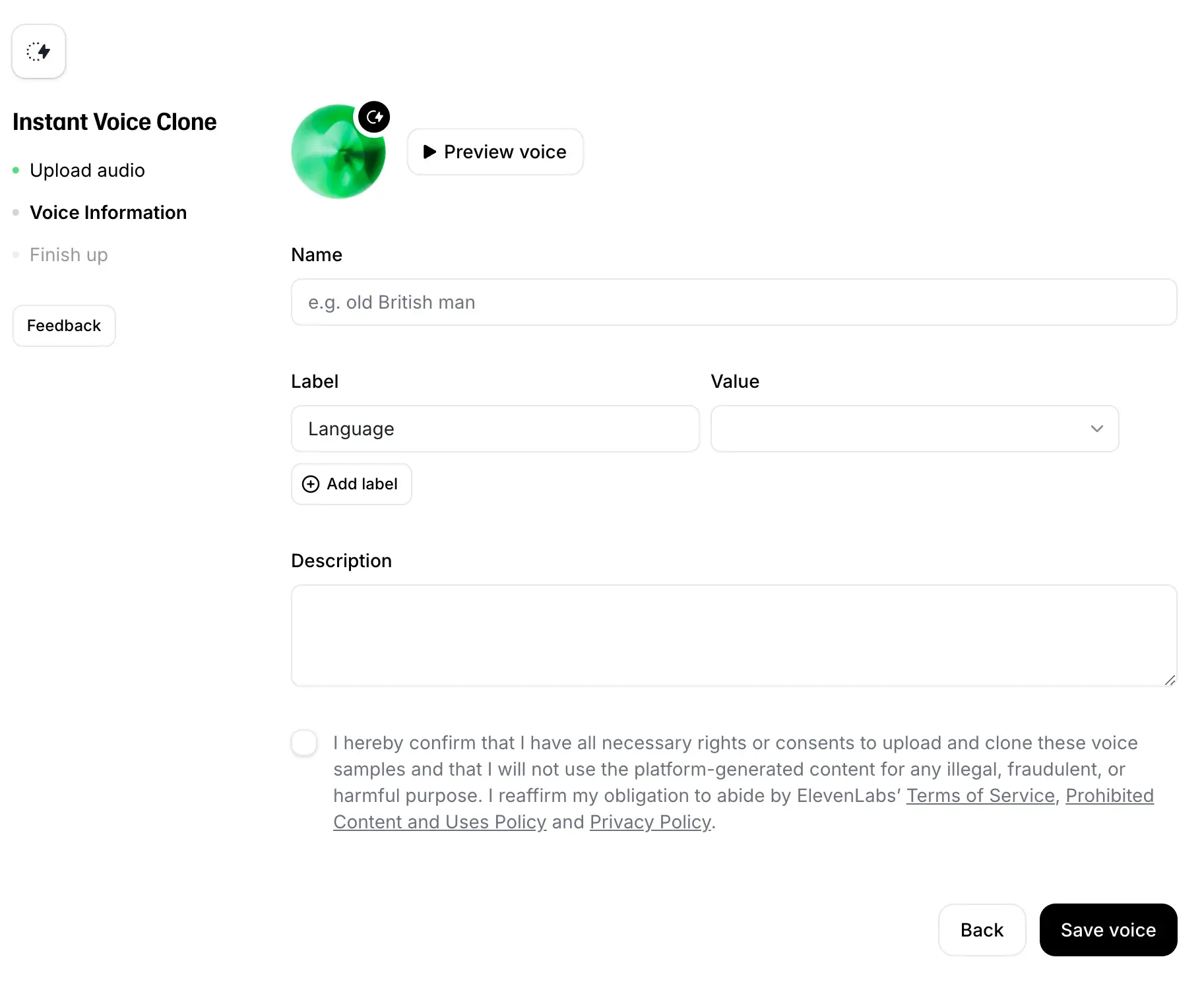
- Add voice details
Give your voice a name and description, tick to confirm you have the rights to clone this voice, and save.
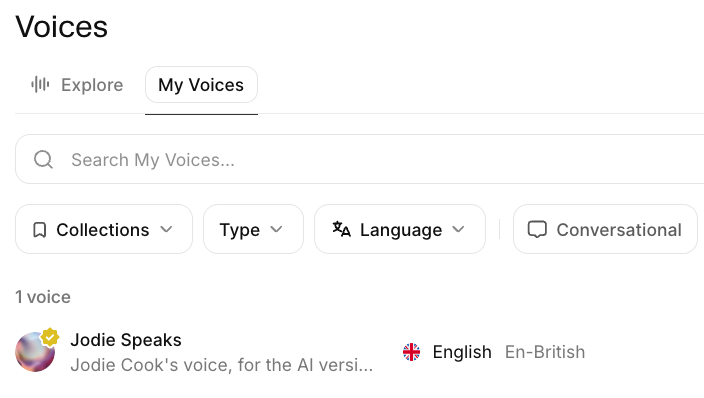
- Your voice is ready ✨
Find your voice on the Voices page under My Voices.
Professional Voice Cloning method steps
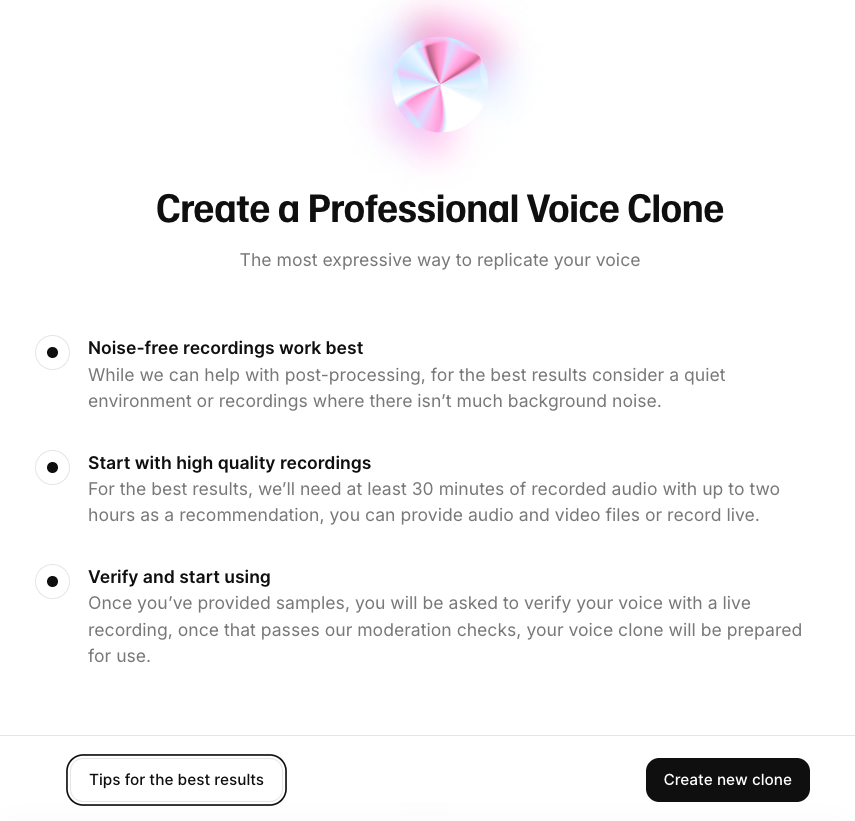
This method is available on a Creator plan or above.
You'll need 30 minutes to a few hours of audio, so this is a great option if you have existing recordings, for example, podcast episodes, webinars, course content, talks, or other videos of you speaking.
- Upload audio sample files and record your voice
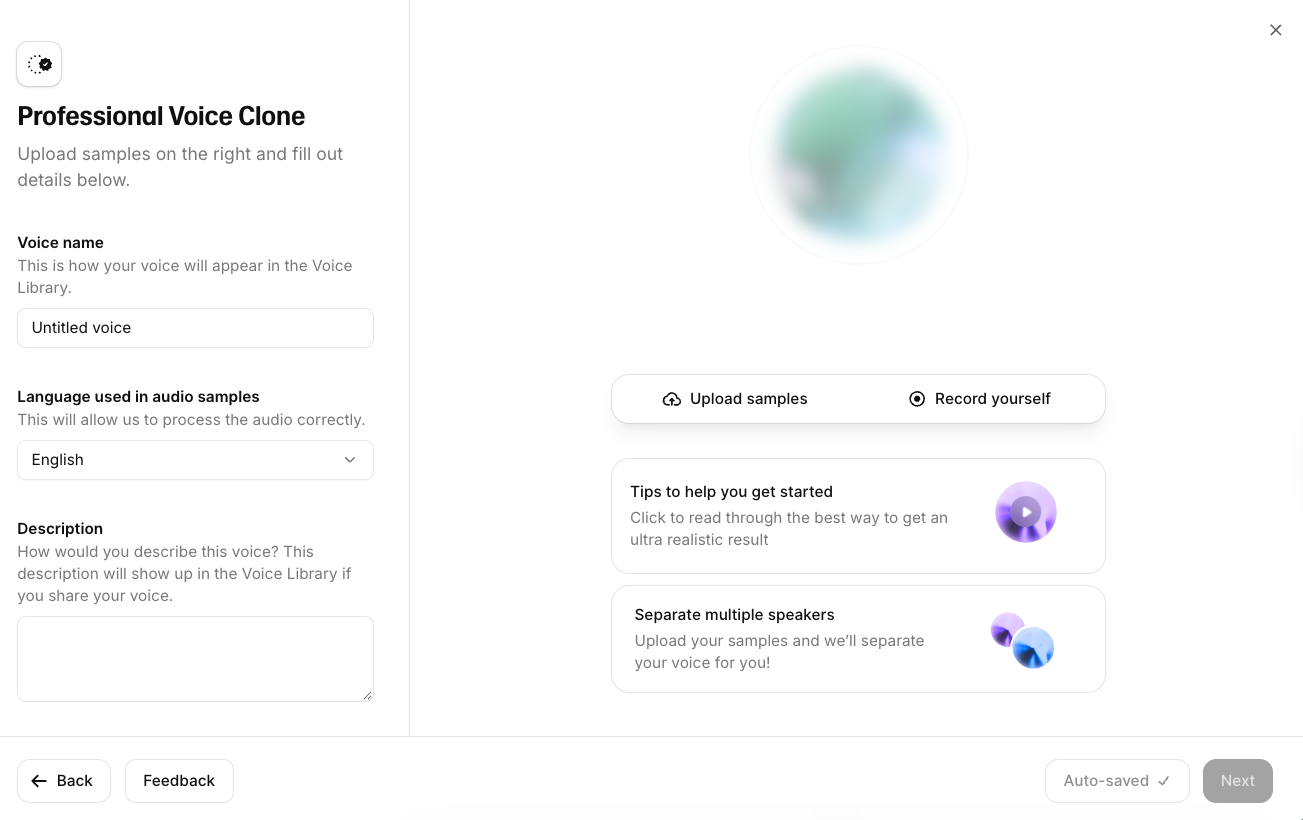
Upload audio files of your spoken voice. A mix of varied, natural-sounding samples usually works better than just using one source.
You can also record yourself directly in ElevenLabs. We recommend writing a voice script for this specific purpose.
ElevenLabs will display feedback on your sample length as you go.
Check out ElevenLabs' tips to get the best results.
- Process your audio
Once your audio samples have been uploaded, you can process them to improve the quality. You can select to remove any background noise, and you can also separate out different speakers if your audio includes more than one.
To access these options, click the Audio settings button next to the clip you want to process.
- Verify your voice
Once everything is recorded and uploaded, you will be asked to verify your voice.
To ensure a smooth experience, try to verify your voice using the same or similar equipment used to record the samples and in a tone and delivery that is similar to those present in the samples.
- Your voice goes into fine-tuning
Your voice then goes into fine-tuning by ElevenLabs. This usually takes 3 to 6 hours, though it can occasionally take longer. You can check the status of your voice in My Voices while it’s processing.
You'll get an email and an in-app notification once it's ready.
- Your voice is ready ✨
Find your voice on the Voices page under My Voices.
Connect your voice to Coachvox
To connect your ElevenLabs account and voice to Coachvox, you first need to create an API key so the two can communicate.
Create your API key
- In ElevenLabs, go to API keys and create a new API key.
- Set the following minimum permissions on your key:
- Text to Speech = Access
- Voices = Read
- User = Access
Optional setting:
- Usage Limits (Credits) - Your API calls are already capped by your ElevenLabs plan's total monthly credits, so this field can be left as unlimited. However, if you want to restrict what proportion of the monthly credits this specific API key can use, or put in place a cap if you've topped up your credits balance, you can add a value in this field.
Add your API key and voice to Coachvox
Next, head to your Coachvox AI settings:
- Toggle on Enable voice in chat.
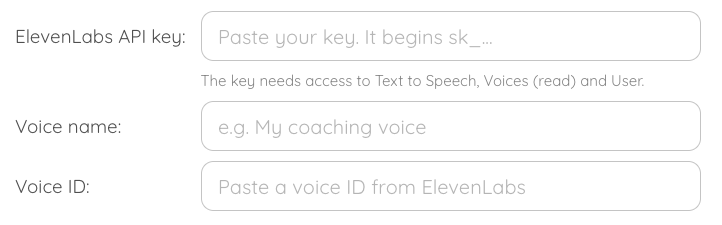
- Add these details:
- Paste your API key into the "ElevenLabs API key" field
- Give your voice a name (this is just for you)
- Paste your voice ID into the "Voice ID" field
- Click Connect voice
Your ElevenLabs voice is now connected to your AI ✨
Test your AI's voice
Once you have connected your voice, head to fine-tuning and have a conversation with your AI to see how it sounds.
Writing a voice script
If you're making a new recording when creating your voice in ElevenLabs, writing a script first can make a real difference to the quality and accuracy of the voice clone. Without one, most people don't speak naturally, don't include enough variety, and may end up with a voice that doesn't quite sound like them.
Note: The content of your script is not used to train your AI. This recording is purely for capturing your voice.
Tips for a great voice script
Keep this simple - aim to sound like you on a normal day.
- Speak naturally - Write how you talk, not how you write.
- Use your coaching voice - Speak as you would when working with clients.
- Use your real language - Include words, phrases, and ideas you use in your work.
- Add variety - Mix short and long sentences. Include questions and emphasis.
- Show some range - Let parts feel calm, others more energetic or passionate.
- Aim for 400-500 words - This gives you enough material for a strong, accurate voice.
Generate a script with AI
Here's a prompt you can use with ChatGPT or Claude to quickly generate a script. Fill in the square brackets in the context section of the prompt with information about yourself and your work.
I'm creating a script to read aloud and record for an AI voice clone of me on ElevenLabs. The recording will capture my tone, pacing, rhythm, and emotional range - not exact wording, so prioritise spoken naturalness and vocal variety over literary style.

Context about me:
Area of expertise: [describe your expertise]
Who I work with: [describe your audience]
What I help them with: [the problem you solve or outcome you deliver]
My coaching / communication style: [e.g. direct, nurturing, challenging, practical]
Avoid: [any words, phrases, or styles that feel unlike you]
Write a natural, conversational 400-500 word script I can read aloud in one take.

It should:
Sound like speech, not writing: mix short and long sentences, include questions, statements, and exclamations, and vary the emotional tone (calm, energetic, reflective).
Mix storytelling, explanation, and speaking directly to the listener, and make it feel like I'm talking to a real person; include one moment of real emphasis or passion and one more thoughtful, reflective moment.
Use realistic phrasing and transitions ("you know", "so", "the thing is") and domain-specific language from my own field.
Avoid sounding formal, scripted, or overly polished, and skip contrast reframes ("it's not about X, it's about Y") or metaphors.

Don't include stage directions or labels - just the script itself.
Recording tips
Read your script once through so you know where the different emphasis and inflections occur, then record it - either directly in ElevenLabs' browser recorder, or record it with other software and then upload the file.
We recommend:
- Do this in a quiet space - background noise reduces quality.
- Speak at your normal pace and volume.
- Don't overthink it - natural is better than perfect.
- Small imperfections are fine - they help it sound realistic!
Troubleshooting
Q. Which ElevenLabs plan should I choose?
A. Instant Voice Cloning is the quickest way to get going, so we recommend beginning with the Starter plan. You can always upgrade later. If you have plenty of existing recordings of yourself speaking, such as podcast episodes, webinars, talks, videos, you may want to choose a Creator plan straight up so you can use Professional Voice Cloning for a closer match.
Q. I already have an ElevenLabs account, so can I use this?
A. Yes, you can use your existing ElevenLabs account. We recommend creating a specific API key for connecting to Coachvox, so you can give it the required settings.
Q. I've already used the Professional Voice Clone slot on my Creator plan. What should I do?
A. If you've already used this to clone your voice, you can connect that same voice to your Coachvox account. If you want to create a different voice for your AI using the Professional Voice Clone feature, you'll need to upgrade to a higher plan tier that gives you more pro voice clone slots.
Q. When trying to add my API key and voice ID in my Coachvox account, I get an error message saying it could not verify the voice in ElevenLabs.
A. The most likely reasons are that the API key or the voice ID is incorrect. It's worth noting that ElevenLabs gives you the option to copy the 'API ID' after you have created it, but this is not the same as the 'API key'. The API key is only shown to you when you create the API key initially. If needed, you can create a new API key.
Q. I copied my ElevenLabs API key, but lost it, and still need to copy it into Coachvox. What shall I do?
A. ElevenLabs will only let you see and copy an API key once, so if you didn't save it, you can't access it again. Simply delete the unused API key and create a new one. Deleting an API key in ElevenLabs won't delete any voices you have created.
Q. I didn't set up my API key with the right access settings. How do I change it?
A. No problem. Just go to your API key and click the ⋯ (More Actions) icon, then Edit, and you can make changes to what it can access, read, or write.
Q. I'm not happy with how my voice sounds - what should I do?
A. If you used Instant Voice Cloning and it's still not quite capturing you, consider upgrading to Professional Voice Cloning instead. The extra audio usually gives a noticeably more accurate result.
If you've already tried Professional Voice Cloning and it's still not quite right, try creating a new clone with different and more varied audio.
Q. Am I charged by ElevenLabs for usage?
A. Your ElevenLabs plan includes a set amount of usage credits each month (typically 30k credits/month on a Starter plan, 121k credits/month on a Creator plan), and each voice generation uses up some of that allowance. You can check your usage and credit balance from your ElevenLabs account. You can also top up your credit balance (~$1.80 = 10,000 credits) if you wish to add more credits.