
AI settings
In your AI settings, you can adjust how your AI operates.
Data collection
When someone begins their first chat with your AI, they will be asked to provide their first name and email address.
This baseline information is required to enable your AI to distinguish between clients and log the chats, so you'll see these ticks in grey in the data collection table.
You can additionally select to collect their last name, company name and phone number.
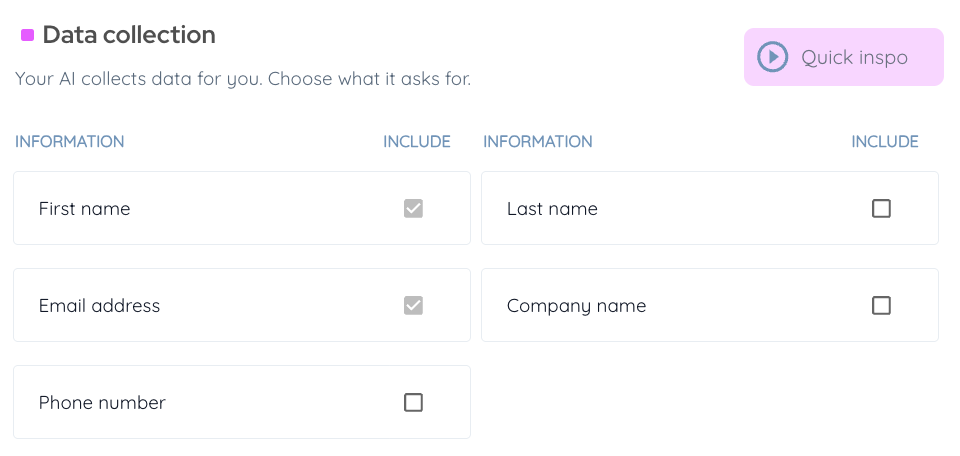
If you select to ask for a phone number, you will then be able to choose the default dialling code displayed. (Clients will still be able to select a different dialling code when adding their number.)

Top tip: We recommend only selecting additional fields that are crucial for your business. Fewer fields increase user completion rates and prioritise a smooth user experience.
Access settings
In this section, you can toggle on the following:
Disable file-sharing
Toggle this setting on if you don't want clients to be able to upload files within the chat.
Disable speech-to-text
Toggle this setting on if you wish to disable the dictation feature and hide the chat microphone button.
We recommend leaving this enabled, but you might choose to disable it if your audience won't use this feature or voice input is not available in your audience's primary language.
Enable users to see previous chats
This is switched off by default, but you can enable this if relevant for your AI's use case and audience.
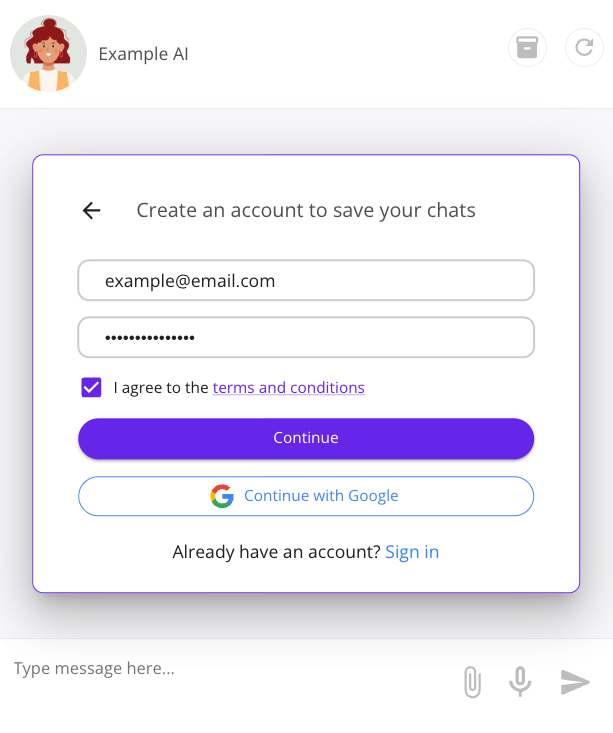
When enabled, users will be asked if they want to set up a password-protected account to save and access their chat history the next time they start a new chat or if they click the archive (box) icon in the top corner of the chat window. This is optional.
If they set a password, clicking the archive icon in the future will ask them to sign in and take them to their chat history. They'll be able to view and download their past chats and resume any of these conversations if they wish to.
Note: When a user creates a password-protected account, they'll be able to see chats from their current session. If they've been using the same browser and device without clearing their history, this may include chats from several days earlier. Chats from past sessions, before they made an account, will appear as separate entries on your client screen - you can download and share those transcripts directly if needed.
Charge for access
You can choose to make access to your AI available on a paid subscription basis through our integration with the payment platform Stripe.
Check out our guidance on charging for access to your AI for full instructions.

Content settings
Default English
Choose whether your AI uses American English or British English spellings and grammar when responding in English.

Note: Your AI can respond in other languages too - more on that here.
Only my content
Your AI will always use your training data as the basis for all its responses. If a client asks about a topic you haven't trained your AI on, it will draw on its wider AI knowledge to be as helpful as possible.
If you wish, however, you can restrict your AI to use only your content. It will then tell users if it doesn't have relevant information to respond.

Important note: If you wish to enable this setting, make sure you've fully trained your AI first. Otherwise, it may not have enough training data to do this effectively.
When to use only your content
In general, we recommend leaving this turned off for the best results. Situations when it may be relevant include:
- If your AI is trained on highly specific and unique approaches and opinions, particularly if these differ from popular ones.
- If you only want your AI to give the specific answers in your training data.
Remember: After making any changes within your AI settings, click the 'save' button before closing this page so your settings are preserved.