
Sharing your mobile app
Your Coachvox mobile app gives clients one-tap access to your AI coach from their phone’s home screen, without needing to find a link or open a browser each time.
Finding your app link
Go to your app settings, listed on the left-hand navigation menu under 'Share your AI' and 'Your app'.
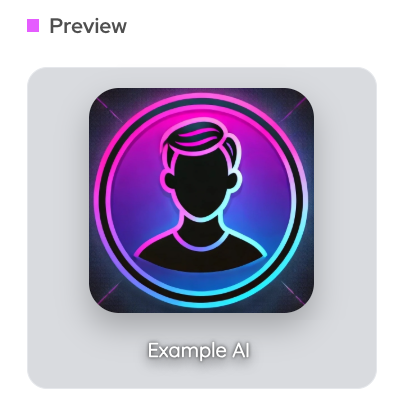
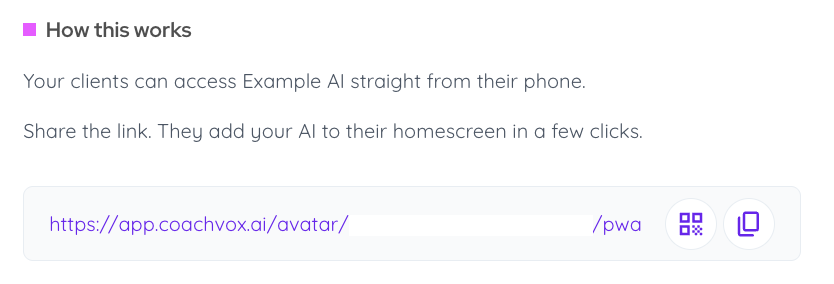
Here you'll find your app's unique link and QR code, along with a preview of how it looks to clients.
Note: If you have more than one AI on your Coachvox account, each one has its own app with its own link. You can share one, both, or neither - it's entirely up to you.
Sharing your app with clients
Share your app's link or QR code directly with clients.
When they tap the link, they'll be prompted to add it to their home screen.
Note: If a client is using a Samsung device and the 'Add app' button doesn't respond when they try to install the app, this is likely because the link is opening in Samsung Internet (the default Samsung browser), which doesn't fully support the installation. The fix is to copy the link and open it in Chrome or Microsoft Edge instead.
Testing your app yourself
To see exactly what your clients experience, you can add the app to your own mobile as a client.
- Log out of your Coachvox account on your mobile device.
- Open your app link and add it to your mobile home screen.
- Sign up using a different email address from the one you use for your Coachvox account.
Controlling access to your app
By default, anyone with your app link can access it. If you'd like to restrict access to specific clients only, you can turn on app access restriction in your app settings.
See our article on restricting access to your AI for more details.