
Create digital products with Coachcart
Coachcart is our digital product store. It lets you create and sell digital assets - lead magnets, mini-courses, full courses, and more - directly inside your Coachvox account. No third-party course platforms required.
You can offer free products to grow your list, low-cost products to attract new buyers, or premium courses to generate revenue.
Every product gets its own auto-generated landing page, and you can set up a public shop page that lists everything you offer. You can also add coupon codes and set up automatic post-purchase upsells, creating an effective sales funnel.
Note: Coachcart is available on the Coachvox Plus plan. Upgrade to Plus from your account settings ✨
Getting started with Coachcart
You'll find Coachcart on the left-hand navigation menu in Coachvox under 'Scale'.
The overview screen gives you a snapshot of your store: total products, total customers and total revenue. You'll also see quick action buttons and a list of your most recent products.

Product types
Coachcart offers four product types, each suited to a different stage of your sales journey.
Lead magnet - A free product designed to attract new contacts. Use this for a checklist, guide, template, or short resource. One module is usually enough.
Tripwire - A low-cost product that converts interest into a first purchase. This works well for a short workshop recording, a mini toolkit, or a bite-sized resource. One module is typical.
Mini course - A focused course at a mid-range price point. This suits a topic-specific course or a structured program covering one area in depth. Three modules are a good starting point.
Full course - A comprehensive, premium course. Use this for your flagship program or a complete learning journey. Eight modules are a suggested starting structure.
Top tip: These are starting points, not rules. You can add as many modules as your content needs.

Creating a product
To create a new product, click 'Create product' from the Coachcart overview or the 'Products' screen.
- Choose your product type.
- Give your product a name and write a description - This appears on your landing page, so write it for your audience.
- Set a price - For lead magnets, leave this as free. For paid products, enter the amount you want to charge. You can also add coupon codes here to offer a discount - see Coupons below.
- Upload a featured image for your product.
- Tick show in shop if you want this product to appear on your public shop page.
- Click save and start adding modules.
- Toggle on Published to make your product live.
Top tip: You can preview your product as you go to see what it will look like to your audience.

Building your modules
Each product is made up of modules. A module is a single lesson or section of your product.
Click 'Add module' inside the product editor, then add the details:
- Title and description - Give your module a name and a short description that appears beneath the title.
- Video - Paste a video URL. YouTube, Vimeo, and Google Drive links all work. For Google Drive, use the view or preview link.
- Text - Add written content, instructions, or context using the text editor.
- PDF attachments - Upload supporting files, such as worksheets or other resources.
- AI embed - Add your Coachvox AI directly into a module so learners can ask questions and get personalised support as they work through your content.
You can add as many modules as you need, and reorder them at any time.
Top tips: Adding your AI to a module is a powerful way to give learners a personalised experience - they can ask questions specific to what they've just learned, and your AI responds in your voice. You could even create a separate private AI just for your course members.
If you have more than one AI in your Coachvox account, you can choose which AI to embed in each module.

Your product landing page
Every product gets an auto-generated landing page. To create it, open your product and click Generate page. You'll select from a few options, then Coachvox will build the page for you.
The generated page includes a headline, body text, a buy button, a testimonial section, a 'what you'll learn' breakdown, a bio section, and a purchasing section at the bottom.
Colors are pulled through from your AI brand settings and your website, giving it a consistent look straight away.
To edit any part of it, click Edit landing page. All the text boxes become editable and you can change the colors, font size, and layout to suit your brand.

Note: If you'd prefer not to use the generated landing page, you can use the embed code instead (see below) to sell your product directly from your own website.
Connecting Stripe
To sell paid products (or offer free ones that collect contact details), you need to connect a Stripe account. This is a one-time setup.
- In Coachcart, head to Settings.
- Under 'Payments' click Connect Stripe.
- Follow the prompts to create a connected Stripe account.

Once connected, Stripe handles all payment processing for your Coachcart products.
You keep 100% of your revenue from Coachcart sales, minus Stripe's processing fees, which are typically 2.9% + $0.30 per transaction.
Note: If you've already connected Stripe for paid AI access, you're all set - the same connection works for both! If not, connecting here creates a new Stripe account for your Coachvox setup.
It's not possible to connect an existing Stripe account you already use elsewhere, but you can use the same email address as an existing account when creating it, so you can easily switch between them from your Stripe dashboard.
Charging tax
To collect tax on your Coachcart sales, enable Stripe Tax in your connected Stripe account and add registrations for the jurisdictions where you operate.
Tax will then be calculated and added automatically at checkout based on your registrations and customer locations, then shown on customer invoices and receipts.
You can also choose within your Stripe settings whether tax is included in your displayed product price or added on top. See Stripe's guide on setting up Stripe Tax for further detail on the specific settings.
Coupons
You can add coupon codes to any product to offer a discount - a simple but powerful selling tactic. People love an incentive, and a well-timed discount can be exactly what turns interest into a sale. Use coupons for promotions, list-building incentives, thank-yous for existing clients, or a one-time discount as part of an upsell.
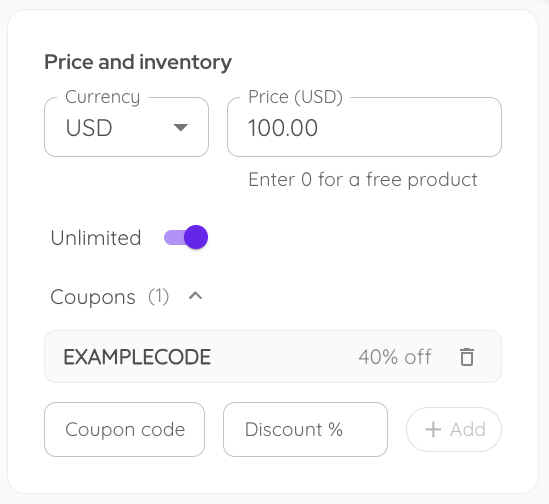
In the product editor, under 'Price and inventory', enter a coupon code and a discount percentage, then click Add.
You can add more than one coupon to the same product.
Share the code with your audience so they can enter it at checkout.
Upselling after purchase
The moment someone buys is a great opportunity to sell them something else. Redirect customers straight to another product right after checkout, with a custom message and offer - and turn a single sale into an upsell.
It's especially effective for turning free lead magnets into paid sales. Someone downloads your free resource, then lands straight on a compelling, time-limited offer for one of your paid courses - the perfect moment to convert interest into a sale.
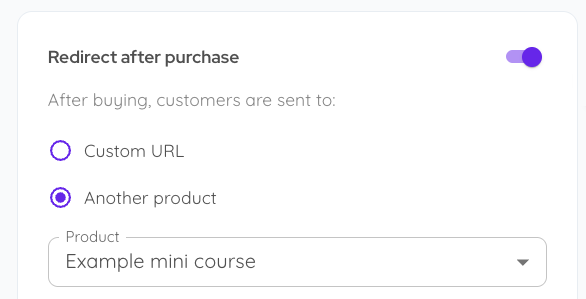
To set this up, open the product customers buy first (often your free lead magnet) and toggle on Redirect after purchase.
Then choose where you'd like to send them:
- Custom URL - send customers to any web address you like.
- Another product - pick one of your existing products to redirect to.
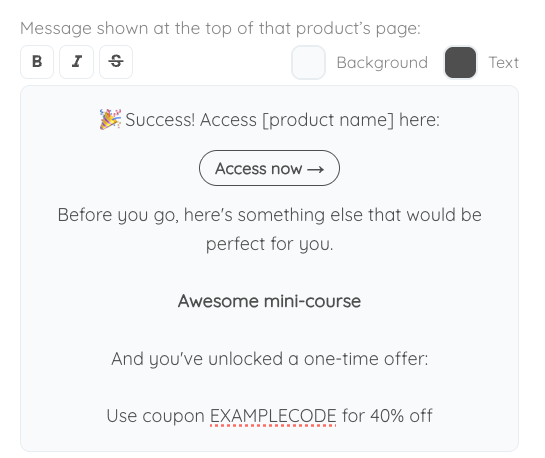
Next, write a message to appear at the top of that product's page - this is your moment to make an offer they can't resist.
Use [product name] and it will automatically be swapped for the redirected product's name, so it feels tailored every time.
Top tip: Pair this with a coupon (see above) so you can offer a genuine, can't-miss discount as part of the upsell - a brilliant combination for squeezing more value out of every sale.
Sharing your product
Once your product is ready, you have a few ways to share it:
- Landing page link - A URL that goes straight to your product's landing page. Find this in the product editor and use this in emails, social media posts, or anywhere you want to send people directly to a specific product.
- Shop page link - A URL to your public shop page, where all your products are listed in one place. Find your shop URL in your Coachcart settings and share it anywhere you want people to browse everything you offer.
- Embed code - A snippet of code available from your product editor that you can drop into your website to display your product inline.
- Share page - You can also choose to show individual products on your Coachvox share page, giving visitors another way to find and buy from you. On your share page settings, toggle on 'Show products' then select which products you want to include.
Top tip: Before sharing your product, use the Preview button inside the product editor to see exactly how customers will experience it.

Setting up your shop
Your shop is a public-facing page that lists all your products together. Products are sorted by price, with free products shown first.
To set up your shop:
- In Coachcart, go to Settings.
- Enter your shop slug - this becomes your shop URL:
https://app.coachvox.ai/shop/[your-slug]- Choose your name or brand name. - Add a heading - this appears as the welcome message at the top of your shop.
- Add a description underneath.
- Write a creator bio so visitors know who you are. This appears as a collapsible section on your shop page.
- Tick Enable public shop page to make it live.

- You then have the option to make any additional style and formatting edits.

Top tip: Products don't appear in your shop automatically - you need to tick 'Show in shop' in the editor. This means you can also create products and share them privately via their direct link. Useful for bonus content, exclusive offers, or anything you don't want publicly listed.
Products tab
The Products tab shows a table of all your products. For each product, you can see the name, product type, price, status, and whether it's showing in your shop. Click any product to open and edit it.

Customers tab
The Customers tab shows everyone who has accessed one of your products - whether they purchased a paid product or signed up for a free one. You can see their name and email, along with how much they have spent with you, giving you a clear picture of your revenue and audience growth over time.

Further guidance
- Charging for access to your AI - Set up paid access to your Coachvox AI separately from Coachcart products.
- Sharing your AI - Other ways to get your AI in front of your audience.
Let's go! Upgrade to Coachvox Plus from your Account settings to access Coachcart.