
Client screen and chats
The client screen is the central hub for monitoring interactions between your AI and your audience. You can track leads, see engagement, understand client needs and improve your AI's performance.
Your client screen
Your client screen shows everyone who chats with your AI in a table, with tools to help you understand and follow up on each conversation.
See who's chatting
- Their name and email address
- The dates of their first and latest chats
- Any additional information you've chosen to collect, like company name
- Whether they've opted in for marketing, if you ask for consent
- New chats since you last signed in, shown by pink dots
Understand your audience
- Read chat summaries and full transcripts
- View a client's profile, if they've filled one in
Take action
- Search for a client
- Flag clients with colour-coded flags
- Email a client directly
- Download or copy chat transcripts
- Export client details and chat summaries
- Remove client records from your screen
Each of these is explained in more detail below.
Note: Chats with the same email address are grouped under one client record, so they stay together even if the client changes their name or other details. The record shows the most recent name and details saved. If one person chats with your AI using multiple email addresses, they’ll appear as separate records.

Table columns
To change the columns you can view in the table:
- Hover over any column header
- Click the three dots to bring up the menu
- Click on 'Manage columns'
- Toggle on the ones you want to view

New chats
Before you even navigate to your client screen, you'll see a pink dot and a number by the 'Clients' menu item when there are new AI interactions.

Managing your client chats
The right side of each client record has several action buttons to help you manage and follow up on your AI conversations.
Flag
The flag feature helps you categorise and highlight chats to guide your follow-up actions.
- Click the flag icon on any row to add a flag in one of four colours
- Click the same flag colour again to unflag the chat
- Click a different colour to change the flag

Apply your own colour-coded system for different meanings to suit your business. For example, you might use purple flags for promising leads, blue flags for current clients, orange flags for additional AI training opportunities, and pink flags for stand-out examples of your AI acing the conversation! You choose your own key.
Click the envelope icon to open your email program and send a personalised message to that client.
Profile
Click the person icon to open a client’s profile. Here you’ll see what they’ve shared about themselves in their account:
- Their name and business name
- Their total number of chats
- A description of their work
- Their biggest challenge
- Their current goal
This helps you understand who you’re talking to and what they’re working on, so you can follow up in a more personal way. Coming soon, a summary of this information will also be shared with your AI, so it can take your client’s details into account when it responds.
Use the button at the top of the panel to switch between their profile and their chats. If a client hasn’t filled in a profile, hovering over the person icon shows ‘No profile info’.
Note: Clients can only fill in a profile when they have a password-protected account.
Chats
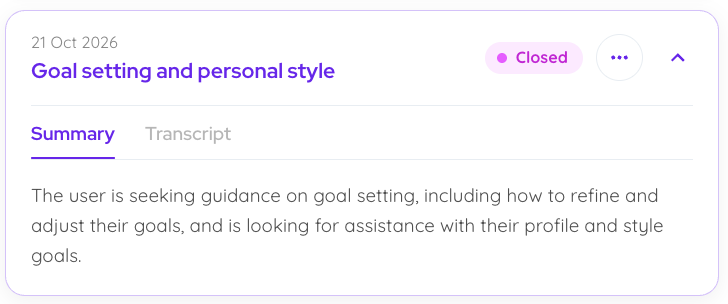
Select the chat icon to view the conversations with that client. Each chat shows its date, title, and whether it’s in progress or closed.
Click the arrow on any chat to expand it, then:
- Read the Summary tab for an automatically generated summary (produced once the chat is closed).
- Open the Transcript tab to read the full conversation, and add any of your AI’s responses to your training data.
Click the three dots (…) to:
- Download the transcript.
- Copy all of the transcript.
Learn how to improve your AI’s responses from client chats.
Note: Chats are shown as "in progress" until 24 hours after the last message or sooner if the user begins a new conversation. This allows your clients to step away and then return to the conversation where they left off. You can still view the transcript when a chat is in progress.
Delete
Click the delete icon on any row to remove that client’s record and chats from your client screen, or select several records and click the ‘Delete’ button at the top of the table.
Note: If you have deleted conversations, the client can still begin a new chat with your AI in the future should they wish to.
Following up with clients
There are several features to help you follow up on leads and chats.
Data export
Select any client records you want to download, then click the 'Export' button. This will export a CSV file of their contact details.

You can also choose to include chat summaries.

Connect with Zapier
Connect your Coachvox account to Zapier so you can automatically send data from your Coachvox AI to your other systems and seamlessly follow up with new clients.
Enabling clients to see their previous chats
You can enable clients to view their own chat history by toggling on 'Enable users to see previous chats' in your AI settings page under 'Access settings'.

How clients access their history
Once this is enabled, clients have the option to save and access their chat history. They do this by clicking the archive (box) icon at the top of the chat window.
Password access
The first time a client clicks the archive icon or starts a new chat, they'll be prompted to create a password-protected account. This unlocks access to their history and makes sure no one else can view this.
If you charge for access via our Stripe integration, clients will already have set a password as part of the sign-up process and be required to sign in to chat, so they won't be prompted again - they can go straight to the archive icon.
What clients see
Once a password-protected account is set up, clients can view, download, and resume their past conversations from that point onwards. All their chats will be shown to you on your client screen regardless.
They can also save your AI’s responses to their highlights, complete their client profile, and update their account details from the cog icon in ‘Your chats’.
Note: You can download a chat transcript and email this to a client if requested:
- Find the client's chat
- Click the three dots (…)
- Click ‘Download’
Every chat with your AI represents someone seeking your unique expertise. Make use of the client screen tools to turn these conversations into connections, opportunities and growth, and build stronger relationships with your audience.
Further guidance
Explore your AI dashboard to view client data and audience challenges.
Learn how to improve your AI's responses from your client chats.
Check out our FAQs about your AI chat.