
Using Claude with Coachvox
Connect Claude to your Coachvox account to build training data, analyse client transcripts and create new content, all using your AI's own voice and knowledge.
When Claude is connected to Coachvox, it can read your AI's training data, personality, and methodology directly, so it already knows how you work before you ask it anything. You can use it to understand what your clients ask most, fill gaps in your AI's knowledge, and push new training data straight back into Coachvox. The whole loop, from insight to improvement, happens in one place.
What you'll need
A Claude account - If you don't already have one, create one at claude.ai
A free Claude account will support one custom connector. You'll only need a paid plan if you want to use multiple custom connectors.
Setting up the connection
Note: We've included images to help you, but Anthropic updates Claude regularly, so the interface may look slightly different from the screenshots below, or vary between the desktop app and web browser.
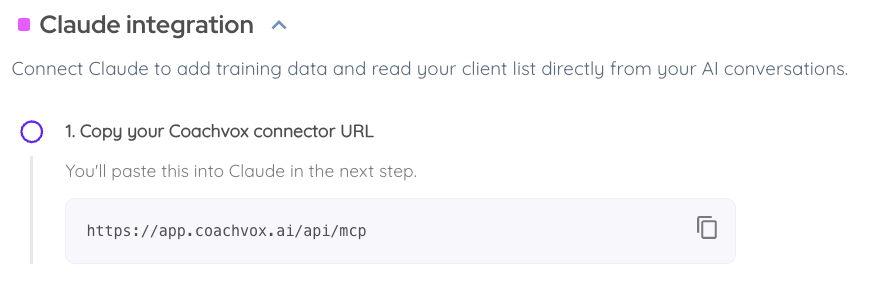
1. Copy your Coachvox connector URL
In your Coachvox account, go to AI settings and find the Claude integration section. Copy the connector URL shown there.
2. Add Coachvox as a custom connector in Claude
Open Claude, either the desktop app or at claude.ai, then open Settings.
Under the Customize section of the menu, select Connectors.
Then click the + or Add and choose Add custom connector.
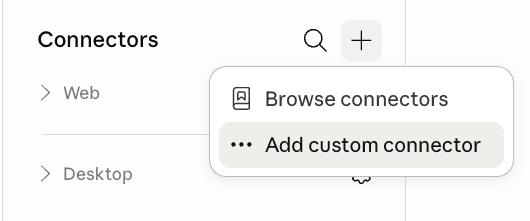
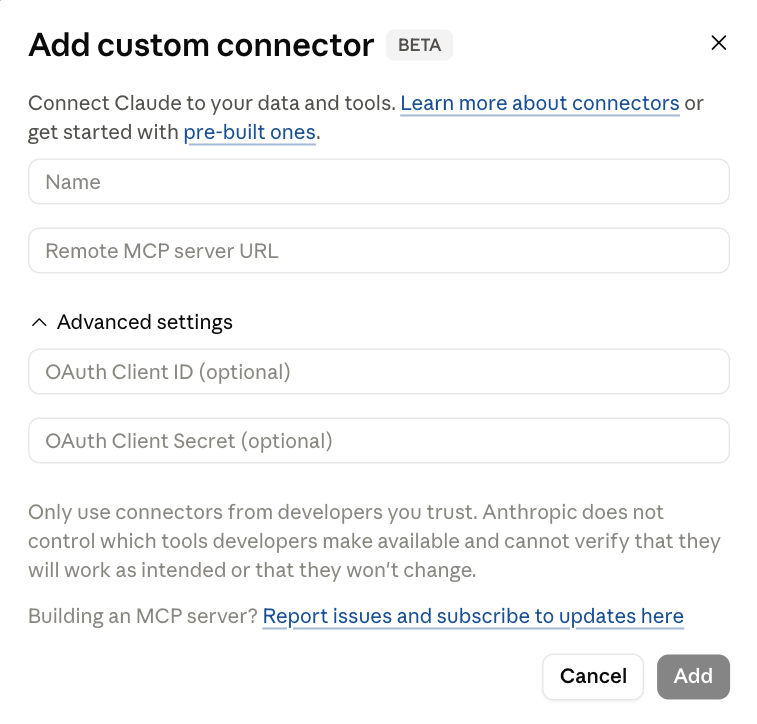
Paste your connector URL into the Remote MCP server URL field.
Type in a name of your choice for the connector and click Add.
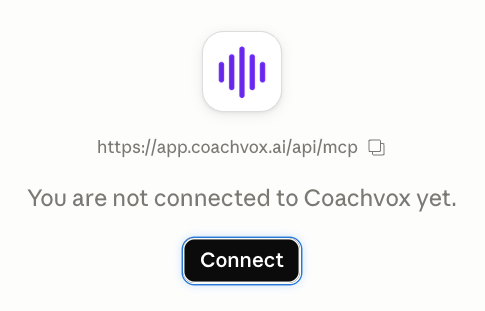
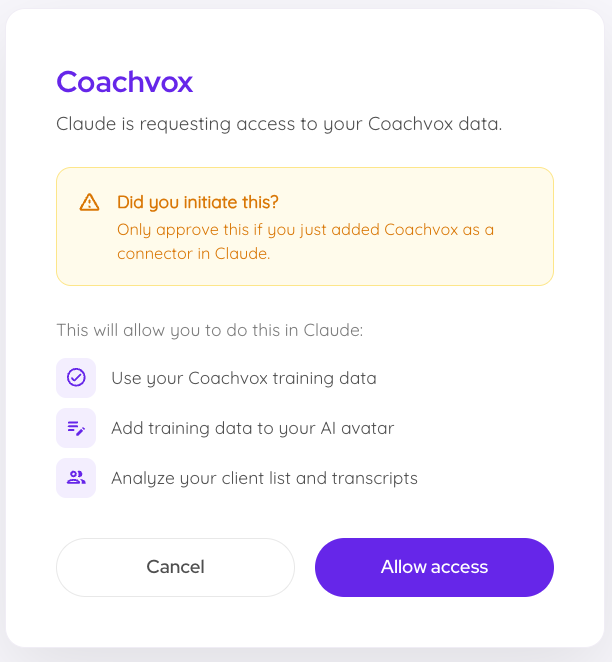
Next, Claude will show a Coachvox connection screen.
Click Connect, then sign in to your Coachvox account when prompted.
Review the information and click Allow access to complete the connection.
Note: Once connected, you can adjust what information Claude has access to at any time.
3. You're connected ✨
Once connected, you will see Coachvox listed in your Claude connector settings, with a list of the available tools.

The connection will also be shown in your Coachvox AI settings.
What Claude can access and do
Once Coachvox is connected, you can control exactly what Claude is allowed to do. Open the Coachvox connector in Claude to see the eleven tools.
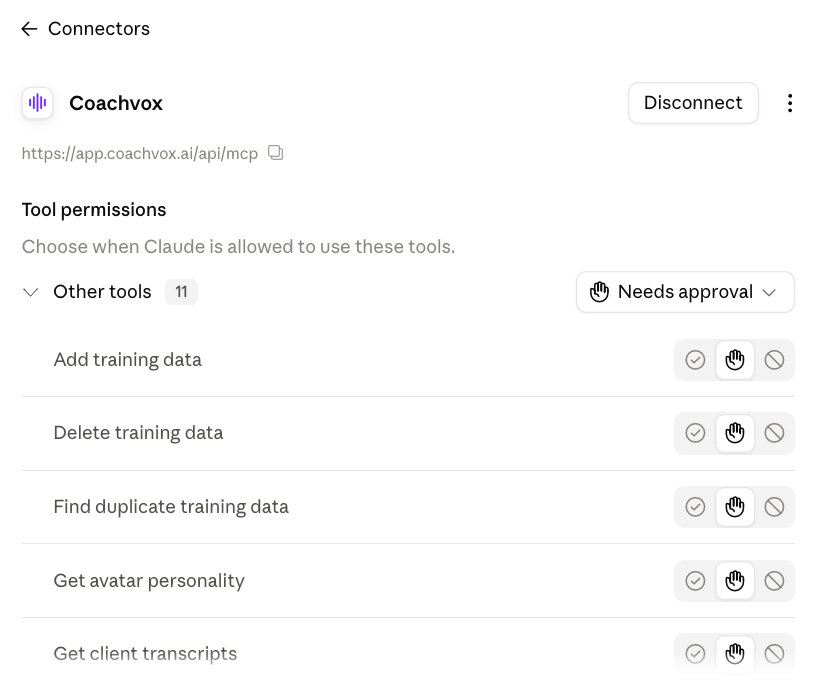
The tools are:
list_training_data- This reads your existing prompt and completion pairs, including the source label (for example, which document or upload they came from).add_training_data- This writes new prompt and completion pairs directly into your AI's training data. You can add up to 100 pairs in one go and apply labels to keep them organised.update_training_data- This edits prompts, completions, and labels (approval required).delete_training_data- This removes prompt and completion pairs (approval required).search_training_data- This runs a full-text search across your AI's training data.find_duplicate_training_data- This scans your AI’s training data for duplicates - either exact copies or the same prompt paired with different completions.list_avatars- This shows the names of all the AIs in your account and which one is set as your default.get_avatar_personality- This reads your AI’s style and tone settings, so Claude can use this to understand your voice before writing anything on your behalf.list_clients- This reads your clients' first names, last names, email addresses, and company names. It does not include conversation history or stats; that comes from get_client_transcripts.get_client_transcripts- This reads the full conversation history between your clients and your AI, including timestamps and a summary of each conversation. Claude needs a client ID from list_clients to use this tool, so the two work together.list_inactive_clients- This finds clients with no conversation in a recent timeframe.
Tool permissions
Each of which can be set to have the following permissions:
- Always allowed - Claude can use this tool without asking
- Needs approval - Claude asks your permission each time (the default for all)
- Disabled - Claude cannot use this tool
What you can do
There's a lot you can do once you're connected!
Start a new chat with Claude and give it instructions, mentioning Coachvox so it knows to use the connection and stating the AI name, if you have more than one AI on your account, so it knows which to work with.
Some of these tasks involve scanning your full training dataset. For larger volumes of data, Claude will typically work through this in batches.
You can dictate or type. We've shared some ideas and prompts below to get you started.
1 Train your AI
Tell Claude what to add, and it will write the prompts and completions in your voice, then push them straight to your AI.
"Add training data to my Coachvox AI so that when someone asks about [topic], it responds in the way that I would. Phrase the prompts as questions my clients would typically ask me, including a few different ways they might ask the same thing. Draft these and ask for my edits and approval first before adding. Tell me if you need more information to do this well."
See our preparing your content for uploading article for more prompts suited to specific types of content that you can copy and adapt.
2 Find gaps in your AI's knowledge
Claude can spot the questions your AI struggles with, the ones where it deflects, hedges, or sends people away. Then it can create training data to fill those gaps based on your content.
"Look through a sample of my Coachvox client transcripts from the last month and find questions where my Coachvox AI didn't have the knowledge to answer fully, or gave weak answers. Then draft training data that will enable my AI to answer better next time."
3 Clean up your training data
Claude can scan your AI's training data for duplicates or conflicting answers, then fix them once you've told it what to keep.
"Find any duplicate or conflicting training pairs in my Coachvox AI. Group them and show me each one so I can decide what to keep. Then ask me what to keep, edit, and delete."
4 Understand your conversation themes
Claude can read your client conversations and give you a report on the themes that keep coming up, so you know what your audience really needs.
"Read the summaries of my Coachvox conversations from the last 90 days and give me a short report on the themes, questions and struggles that keep coming up for my audience."
5 Create content in your voice
Claude reads your AI's personality and voice settings, so it can write posts, emails, and articles that sound like you.
"Read my Coachvox AI's personality and voice, then write me five LinkedIn posts about [topic] that sound like me."
⭐️ More prompts: We've put together many more prompts at coachvox.ai/connect/ ⭐️
6. Update your training data in bulk
If you need to make changes across multiple prompt and completion pairs, for example, swapping out an old URL, Claude can scan your training data, identify every affected entry, show you a before-and-after comparison before changing, and then make changes!
"Scan all my Coachvox training data for the URL [old-url.com]. List every prompt/completion pair that contains it, with the exact text around the URL. Then draft a corrected version of each one with [new-url.com] swapped in, and show me the before/after as a table so I can review before anything changes."
7. Find and clean up duplicate training data
Over time, duplicate entries can build up in your training data, especially if content has been uploaded or added more than once. Claude can scan your data and find: a) Exact duplicates - pairs where the prompt and completion text are identical, so duplicates can be deleted, and b) Same prompt groups - the same prompt paired with multiple different completions, so you can review and decide which version to keep.
“Scan my Coachvox training data for duplicates and show me what you find, grouped by type.”
Data and privacy
The connection gives Claude access to real data from your Coachvox account. Here is what to know and decide before you use it.
Client data
- The
list_clientstool returns your clients' first names, last names, email addresses, and company names. - The
get_client_transcriptstool returns the full text of client conversations, including everything they wrote, along with timestamps. - The
list_inactive_clientstool returns only a client's reference ID, signup date, and last conversation date. It does not include their name, email, or company. To find out who a client actually is, you'd need to pair the ID with list_clients, which does return those details.
Important notes:
Transcripts are not anonymized for two reasons. First, to fetch a transcript, Claude needs a client ID, which it gets from list_clients or list_inactive_clients, so email addresses and other client details can still reach Claude even if get_client_transcripts is the only one of the two tools you've enabled. Second, the transcript content itself could contain identifying details, and it's shared with Claude as written.
Switching off one tool doesn't fully wall off what Claude can work out. Claude can sometimes infer things, like how recently a client has been in touch, by combining information from whichever tools you do have enabled, rather than needing a dedicated field for it. So disabling a specific tool isn't a hard guarantee that related information stays out of reach.
Depending on the nature of your work and what you have agreed with your clients in your own data handling and privacy policies, you may decide to disable the client-related tools. You can edit this at any time in the connector settings.
This setting applies to your whole client base, not individual clients, and covers historic conversations as well as new ones. If you've been adding clients over time, it's worth thinking about whether everyone, not just your most recent clients, knew this kind of data sharing could happen when they signed up. If your privacy policy has been updated since then, older clients may still be covered by an earlier version, so it's worth reviewing this before switching these tools on.
For transcript analysis without enabling these tools, you can copy and paste conversations into Claude manually, removing any identifying information first - we recommend a simple find-and-replace search method for this.
Claude's own data settings
Before you start using the integration, turn off the setting "Help improve our AI models" in Claude settings > Privacy controls > Preferences. This prevents your conversations with Claude from being used to train Anthropic's models.
Your privacy policy
If you use this integration to access client data, review your own privacy policy to make sure it covers your use of third-party AI tools.
If you haven't already, you can link your own privacy policy to your AI's sign-up form so clients accept it when they register. See Linking your privacy statement for how to set this up.
Getting the most from Claude
Claude model and data volume
How much Claude can cover in one go depends on your Claude plan, the model you're using, and how much data is in your account. For many of the tools, Claude reads your data in batches rather than all at once, though some, like search_training_data, work differently, running a text search rather than pulling everything through.
You can always ask Claude to tell you what and how much data it reviewed out of the total, so you know whether you're looking at a full picture or a sample.
English language
Claude usually defaults to American English. If you use British English, you can add instructions to get it to use this instead.
To apply this across everything you create with Claude, add a note to your profile preferences: click on your profile icon, select Settings, then add to the "Instructions for Claude" field something like "Always use British English spelling and phrasing". To apply this just to a specific project, or to reinforce this preference, add a note to a project's custom instructions.
More possibilities
The suggestions and prompts above are just a starting point. The more you explore the connection, the more ways you will find to use it, and every coach's workflow is different.
If you come up with a use we haven't thought of, we'd love to hear about it.
⭐️ More ideas: Take a look at coachvox.ai/connect/ for more uses and prompts ⭐️