
Using ChatGPT with Coachvox
Connect ChatGPT to your Coachvox account to build training data and review your AI's setup, all using your AI's own voice and knowledge.
When you ask ChatGPT to work with your Coachvox AI, it can retrieve the relevant settings and data directly from Coachvox. This allows it to review your setup, identify knowledge gaps, understand conversation themes, and add new training data, all without leaving the chat.
What you'll need
A ChatGPT account on any paid plan - If you don't already have one, create one at chatgpt.com.
You'll need to enable developer mode to add a custom plugin. This is currently available on ChatGPT Plus, Pro, Business, Enterprise and Education accounts.
Setting up the connection
Note: OpenAI updates ChatGPT regularly, so menu names and screens may look slightly different from the steps below, depending on your plan and version.
1. Turn on developer mode in ChatGPT
Custom connectors currently live behind ChatGPT's developer mode, so you'll need to switch this on first.
- Open ChatGPT, click your profile name/picture and select 'Settings.'
- Go to Plugins (or 'Apps' depending on your version of ChatGPT)
- Open Developer mode and toggle this on.
Note: You may also see a toggle called 'Enforce CSP in developer mode'. This doesn't affect Coachvox at the moment so can be left as it is.
2. Add Coachvox as a custom plugin
- Return to the Plugins (or Apps) page
- Click the + plus button to add a custom plugin
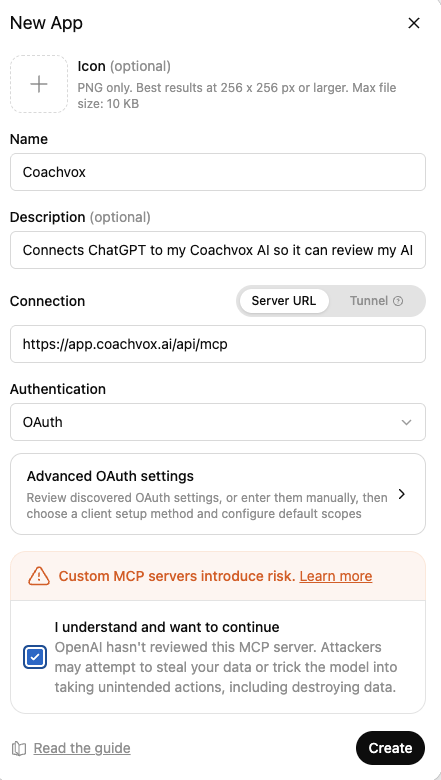
- Enter the following details:
- Name: Coachvox
- Connection: Paste in this URL:
https://app.coachvox.ai/api/mcp
- Add/adjust other optional settings:
-
Icon: If you'd like to add one, use this logo:

- Description: Connects ChatGPT to my Coachvox AI so it can review my AI's settings, training data, clients and conversations, and add new training data.
- Authentication: OAuth (this will be the default)
-
- Tick the box - You'll see a message that custom MCP servers introduce risk. This appears for every custom connector, not just Coachvox. Tick "I understand and want to continue".
- Click Create.
-
Connect your Coachvox account
Once the Coachvox plugin is installed, you can connect to your Coachvox account.
- Click 'Connect' and then 'Sign in with Coachvox'.

- Another screen will appear. Click on Allow access.
- Complete your Coachvox login credentials (It may already recognise that you are signed in to your Coachvox account, so you may not need to do this step.)
-
You're connected
You'll now see Coachvox listed as a plugin in your ChatGPT settings.

What ChatGPT can do and access
Once Coachvox is connected, you can control what ChatGPT is allowed to do.
Available tools:
list_avatars- Sees the names of all the AIs in your account and which one is set as your default.get_avatar_personality- Reads your AI's style, tone, and coaching approach settings. Ask ChatGPT to read this before drafting training data when you want the output to reflect your AI’s configured voice.list_training_data- Reads your existing prompt and completion pairs, including the source label.add_training_data- Writes new prompt and completion pairs directly into your AI. ChatGPT can draft these in your voice and push them straight to your AI without you needing to manually copy and paste or upload anything.list_clients- Lists the clients who have interacted with an AI.get_client_transcripts- Reads conversation summaries or full transcripts for selected clients.
Tool permissions:
ChatGPT controls this with one setting for the whole plugin, rather than one per function (as Claude does). You'll see four options:
- Always ask - ChatGPT checks with you before reading or making any changes.
- Allow read actions - ChatGPT can read without asking, but will check with you before making changes.
- Allow low-risk actions (usually ChatGPT's default) - ChatGPT automatically approves actions it judges as low-risk, but may still ask about anything involving sensitive information.
- Allow all actions (marked elevated risk) - ChatGPT won't ask before reading or acting on anything.
We'd recommend Allow read actions for Coachvox. It means ChatGPT can look up your AI's personality and training data without interrupting you each time, but it will still check with you before it adds anything new, so nothing gets written into your AI without your approval.
You can set this permission level for Coachvox specifically by opening the Coachvox plugin, or you can set a default that applies to every connected app from the plugins screen.
What you can do
There's a lot you can do once you've connected Coachvox to ChatGPT!
Start a new chat with ChatGPT and select the plugin when you begin, or type @Coachvox to add it in at any point.

Give it instructions and ask it to use Coachvox for your request. You can dictate or type. We've shared some ideas and prompts below to get you started.
Note: If you have more than one AI in your account, tell ChatGPT which one to work with. If you do not name an avatar, Coachvox uses the default one.
💡 More ideas: We've put together many more prompts at coachvox.ai/connect.
1 Understand your AI's voice
ChatGPT reads your AI's personality setup so it can take your AI's tone, style and framing rules into account before it drafts anything for you.
"Get the personality setup for my default Coachvox avatar, then summarise its tone of voice, style and framing rules."
2 Review what your AI already knows
ChatGPT can look through your existing training data, summarise the themes covered, and flag where answers to topics likely to come up are missing.
"List the first 10 training data entries for my default Coachvox avatar, and tell me what topics are already covered."
3 Review client conversations
ChatGPT can list an avatar’s clients and retrieve conversation summaries or full transcripts. Use this to identify frequently asked questions, unhelpful responses, or missing training data.
“List the clients for my default Coachvox avatar. If any names are duplicated, show me enough information to choose the correct record.”
Then:
“Retrieve conversation summaries for [client/clients]. Identify knowledge gaps and suggest new training pairs, but don’t add anything yet.”
4 Draft and add new training data
Tell ChatGPT the topic, ask it to draft prompt and completion pairs in your AI's voice, review them, then approve before anything is added.
"Read my Coachvox AI's personality setup, then draft five training pairs about [topic] in the same tone of voice. Show them to me in a table before you add anything."
Once you're happy with the draft:
"Add these approved training pairs to my default Coachvox avatar with the label [topic-name]."
Data and privacy
The connection gives ChatGPT access to real data from your Coachvox account. Here is what to know before you use it.
Training data
The add_training_data tool writes directly into your AI, so it's worth reviewing anything ChatGPT drafts before it goes in. The approval-first prompts above are a simple way to build that check into your workflow.
Client chats
The list_clients tool returns your clients' names, emails, and any other data you're collecting on signup, and get_client_transcripts returns the full text of what clients wrote. Treat it the same way you would any other record containing personal information.
For a quicker, more privacy-conscious review, ask for conversation summaries first. Request full messages only when you need to examine the precise interaction. Long client histories may be retrieved in several batches.
ChatGPT's own data settings
Before you start using the integration, we recommend turning off "Improve the model for everyone" in ChatGPT Settings > Data controls. This prevents your conversations with ChatGPT from being used to train OpenAI's models.
If you're on a Business, Enterprise, or Education plan, you'll want to follow your account administrator's guidance.
Your privacy policy
If you plan to use this integration alongside client data, it's a good idea to review your own privacy policy to make sure it covers your use of third-party AI tools.
If you haven't already, you can link your own privacy policy to your AI's sign-up form so clients accept it when they register. See Linking your privacy statement for how to set this up.
Troubleshooting
If an access request is declined, no data is retrieved or changed. If you allowed a request, but the action stopped, just ask ChatGPT to retry and approve the Coachvox request again when it appears.
More possibilities
The suggestions and prompts above are just a starting point. The more you explore the connection, the more ways you will find to use it, and every coach's workflow is different.
If you come up with a use we haven't thought of, we'd love to hear about it.
⭐️ More ideas: Take a look at coachvox.ai/connect/ for more uses and prompts ⭐️